Solventum™ Speech Understanding Toolbar
The Solventum Speech Understanding Toolbar is an integrated solution for our partner's mobile applications.
Provides full front-end dictation capabilities for mobile users.
Offers the same commands, abbreviations, CAPD options, and other settings as our Fluency Direct application. Fluency Direct is not required!
Designed for all users, right- and left-handed.
Offers easy to use recognition with no profile training required. "What Can I Say" feature to help you learn commands quickly.
Opening the Solventum Speech Understanding Toolbar
To open the Solventum Speech Understanding Toolbar, click on the globe icon in the keyboard and select Fluency Direct from the keyboard options available.
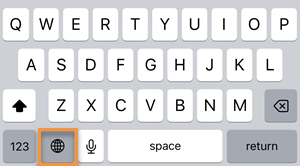
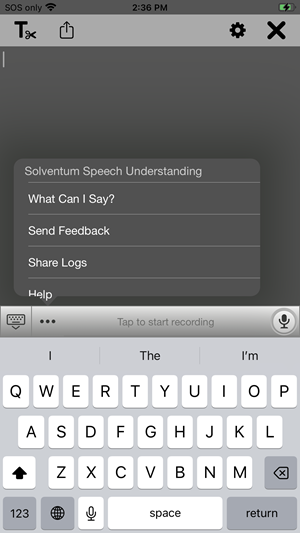
The Solventum Speech Understanding Toolbar consists of the following components:
Menu Button (ellipses icon)
Show / Hide Keyboard Button (Optional Feature)
Messages
Recording Bar / Microphone
Volume
Menu Button
Tap the ellipses (...) to bring up the Toolbar Menu.
Solventum Speech Understanding. Displays the System information for your Speech Understanding Toolbar application.
What Can I Say?. Displays a list of commands and phrases that are most commonly used in Fluency Direct.
Send Feedback. Opens a window to provide direct feedback to support for issues.
Share Logs. When working with Support, you can use this feature to share log files with Support for troubleshooting.
Help. Opens the online Help Documentation.
Show / Hide Keyboard Button
Tap the keyboard icon to show or hide the keyboard. This feature is optional and may not be available in your application.
In Android, you can click the Back button on the phone to minimize the keyboard; the Speech Understanding Toolbar will remain visible at the bottom of the screen.
Tapping in the text box will bring up the keyboard.
Messages
Pop up messages will appear above the Recording Bar.
Recording Bar / Microphone
Tapping the Recording bar will toggle the microphone on and off. You can also hold the microphone button to record dictation.
Volume Bar
When dictating, the green bar at the bottom of the Recording Bar will show the volume of your dictating voice. If it's too low, speak up or move the microphone closer. If it's too high, move the microphone away from your moth a bit or speak in a softer voice.